
Most business owners we speak to in Beirut and the Gulf already have Google Search Console. Someone set it up when the website launched, an email arrives every month, and nobody opens it. That is a shame, because Search Console is the only place where Google itself tells you how your website performs in search: which queries bring visitors, which pages are losing ground, and which technical problems are holding you back.
This Google Search Console guide is written for owners and marketing managers, not developers: think of it as GSC for business owners. It skips the reports you can safely ignore and focuses on the handful that reveal lost traffic, missed opportunities and problems worth fixing. By the end, you will have a 20-minute monthly routine that turns Search Console from a forgotten login into one of your most useful business tools.
Why Search Console Matters More Than You Think?
Google Analytics tells you what visitors do once they arrive. Search Console tells you what happens before that: how often your pages appeared in Google, for which searches, in what position, and how many people clicked. It also reports problems that analytics cannot see, such as pages Google refuses to index or a site-wide speed issue on mobile.
For a service business, that difference matters. If enquiries drop, analytics shows fewer visitors; Search Console shows whether you lost rankings for your main service term, whether a key page fell out of the index, or whether searchers simply stopped looking. Each of those calls for a different response, and only one of them is a marketing problem.
Search Console is also free and comes directly from Google, so it is the most reliable source of organic search data you have. Third-party SEO tools estimate; Search Console measures.
Setting Up Search Console Properly
If Search Console was never set up, or you are not sure who controls it, start here; any honest Google Search Console guide begins with ownership, because mistakes cause real problems later, especially when an agency or freelancer leaves.
Domain Property vs URL-Prefix Property
A domain property covers every version of your site at once: HTTP and HTTPS, with and without www, and all subdomains. It requires verification through a DNS record at your domain registrar. A URL-prefix property covers only one exact version, such as https://www.example.com/. For most businesses, a domain property is the better choice because it shows the complete picture. Multilingual sites that use folders such as /en/, /ar/ and /fr/ are fully covered by one domain property, and you can filter by folder inside the reports.
Who Should Own the Account?
The business should be the verified owner, using a company email address rather than a former employee’s personal account. Agencies and freelancers should be added as users with the permission level they need. This way, if you change providers, your historical data stays with you. Search Console keeps 16 months of performance data, so losing access means losing more than a year of history.
The Search Console Performance Report
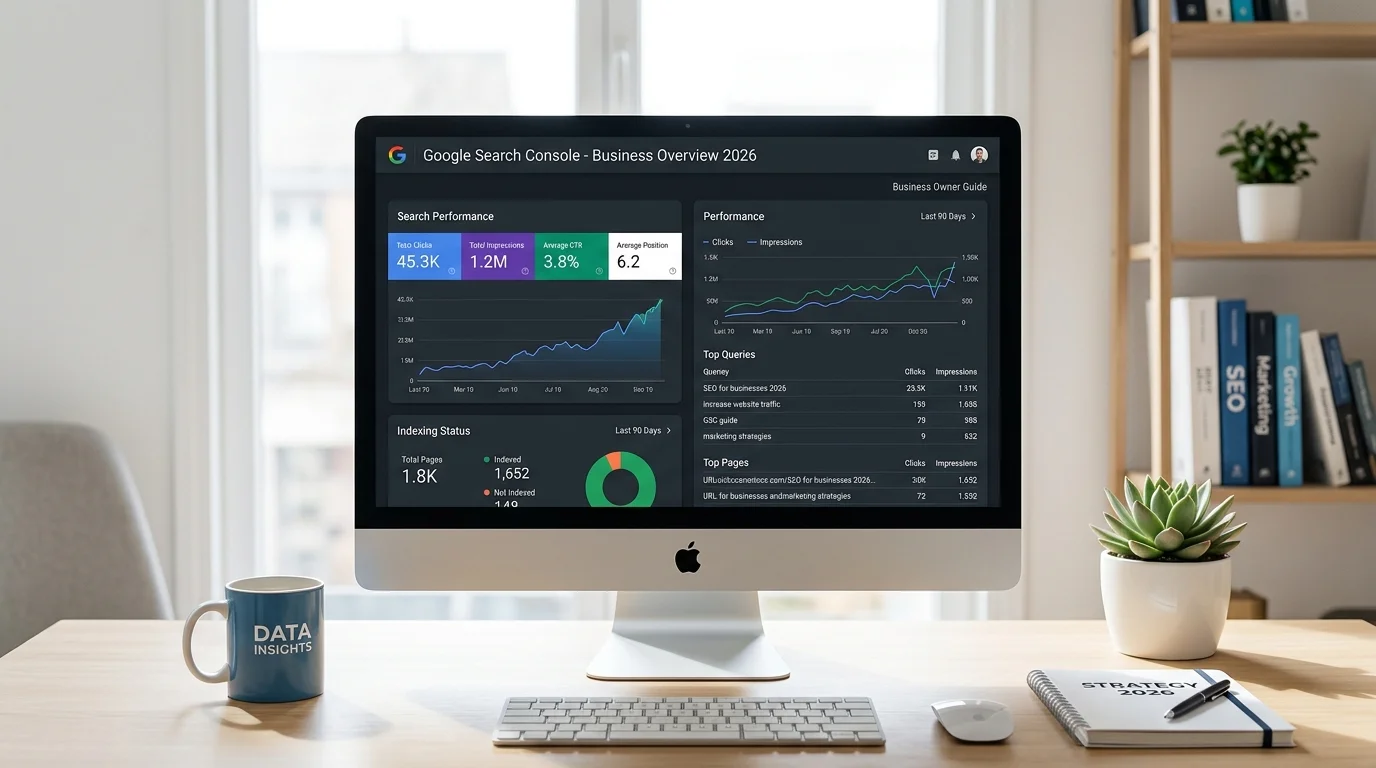
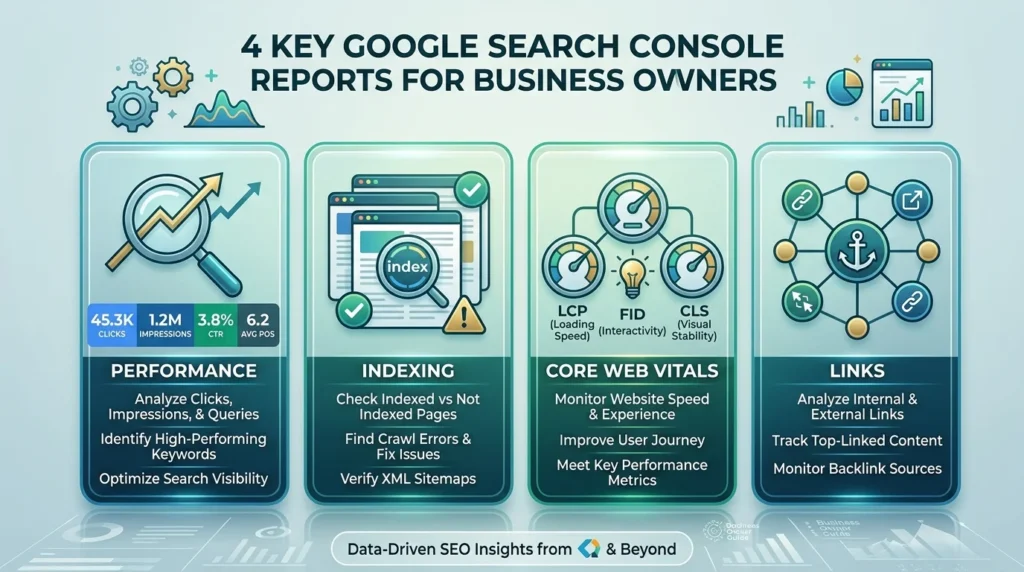
If this Google Search Console guide convinces you to open only one report, make it this one. In the left menu, choose Performance → Search results. The four boxes at the top are the core metrics in any Search Console performance report.
The Four Metrics Every Google Search Console Guide Starts With
Clicks are visits from Google search results to your site. Impressions count how often a link to your site appeared in results a user saw. CTR (click-through rate) is clicks divided by impressions. Average position is the average of your site’s highest position for each search where it appeared.
Average position needs care. It blends every query you appear for, from your brand name in position one to obscure terms in position sixty. A falling average can be good news if you started appearing for many new queries. Always look at position for specific queries and pages rather than the site-wide average.
Filtering by Query, Page, Country and Device
The table below the chart is where the insight lives. The Queries tab shows what people typed. The Pages tab shows which URLs received the impressions and clicks. The Countries tab is especially useful for businesses that serve Lebanon and the GCC: filter to Lebanon, then to the United Arab Emirates or Saudi Arabia, and you may find very different queries and pages performing in each market. The Devices tab shows whether mobile visitors behave differently from desktop visitors.
Combine filters to answer real questions. For example, filter to one service page, then open the Queries tab, to see exactly which searches bring people to it and which ones you rank for without getting clicks.
Comparing Date Ranges
Click the date filter and choose Compare, then compare the last 28 days with the previous period or the same period last year. Sort the Pages table by the difference in clicks to see which pages are gaining and which are losing. Year-on-year comparison is often more honest than month-on-month for seasonal businesses such as hospitality, education or retail.
Branded vs Non-Branded Searches
Searches for your company name tell you about brand awareness; searches for your services tell you whether SEO is winning new customers. Separate them. Google has added a branded-queries filter to the Performance report for many properties; if you do not see it, create a query filter that excludes your brand name and its common spellings, including Arabic and transliterated versions. Non-branded clicks are the clearest measure of SEO progress, as we explain in our article on SEO KPIs and ROI.
AI Overviews and AI Mode
Search Console’s performance data includes appearances in Google’s AI features, such as AI Overviews and AI Mode, and Google has been adding dedicated views for generative AI visibility. Treat these numbers as a trend indicator rather than a precise measure, and watch whether impressions grow for informational queries where AI answers are common. A page that earns impressions but few clicks in those results may need a clearer, more distinctive answer to stand out.
The Search Console Page Indexing Report
Open Indexing → Pages to see how many of your pages are indexed and why others are not. You do not need every URL indexed; redirects, deliberate noindex pages and duplicates are excluded on purpose. What you need is for every important page, such as service pages, key articles and main product categories, to be indexed.
Check this report monthly and whenever the website changes. A sudden rise in “not indexed” pages after a redesign is an early warning worth acting on immediately. When a specific page is missing, paste its address into the URL Inspection bar at the top of Search Console for the exact reason. Our guide to fixing a website not indexed by Google walks through each status and its fix.
Core Web Vitals and Page Experience
Under Experience → Core Web Vitals, Search Console groups your URLs into Good, Needs improvement and Poor, separately for mobile and desktop, based on real visitor data from Chrome users. Small sites may see “not enough data”, which is normal.
Focus on the mobile report first, because most visitors in Lebanon and the Gulf browse on phones. If a group of pages is marked Poor, click it to see an example URL and the metric involved, then pass that to your developer. Our article on Core Web Vitals explained covers what each metric means and how it is usually fixed.
The Links Report
The Links report shows which external sites link to you most, which of your pages receive the most links, and which pages you link to most internally. Two checks are worth doing. First, confirm that your most important commercial pages receive internal links from your strongest content; if a key service page barely appears in the internal links list, your own site is not supporting it. Second, scan the top linking sites for anything unfamiliar or spammy. Our guide to link building in 2026 explains which links genuinely help.
Other Reports Worth a Quick Look
A few remaining areas deserve a glance each month even though they rarely change:
- Sitemaps: confirm your sitemap was read successfully and recently.
- Manual actions: this should say “No issues detected”; anything else is urgent.
- Security issues: hacked content or malware warnings appear here first.
- Enhancements: errors in structured data that can affect rich results, explained in our guide to schema markup.
A 20-Minute Monthly Search Console Routine
Here is the routine we recommend to clients who want to stay informed without becoming SEO specialists. Do it on the same day each month:
- Performance, last 28 days vs previous period: note total and non-branded clicks.
- Pages losing clicks: list the three biggest losers and check whether rankings or demand changed.
- High impressions, low CTR: find queries with many impressions and a weak click rate.
- Indexing: confirm key pages are indexed and no new error type appeared.
- Experience and security: check Core Web Vitals, manual actions and security issues.
Keep a simple log of what you found and what you changed. After a few months, that log becomes the most valuable part of this Google Search Console guide, because it shows which actions moved the numbers on your own site.
Turning Search Console Data Into Action
A Google Search Console guide is only useful if it changes what you do. Three patterns cover most quick wins.
High Impressions, Low CTR
If a page appears often but few people click, the title and description are probably not compelling or do not match what searchers want. Rewrite the title tag to lead with the main benefit and the query’s wording, and make the meta description specific. Then compare CTR four weeks later.
Positions 8 to 15
Queries where you sit at the bottom of page one or the top of page two are the closest opportunities. Improving the content on that page, answering the questions it currently skips, adding internal links from related articles and strengthening its headings can move it up meaningfully.
Pages Losing Clicks
When a previously strong page declines, check three things in order: did its position drop, did impressions drop (demand or seasonality), or did CTR drop (a competitor or new search feature took attention)? The answer tells you whether to update the content, wait out a seasonal dip or improve the snippet.
Common Mistakes When Reading Search Console
Owners often misread the data in predictable ways. Treating average position as a single score is the first. Panicking over a two-day dip is the second; Search Console data runs with a short delay, and daily numbers are noisy, so judge trends over 28 days. The third is assuming the query list is complete: Google withholds some very rare queries for privacy, so query totals will not always add up to page totals. Finally, remember the 16-month data limit. If you want longer history, export the Performance data regularly or connect Search Console to Looker Studio. Following this Google Search Console guide consistently matters more than mastering every report.
Frequently Asked Questions
Learning how to use Google Search Console starts with verifying your site as a domain property. Then focus on three reports: Performance (search results), Pages (indexing) and Core Web Vitals. Check them once a month using the routine in this Google Search Console guide, and use URL Inspection whenever a specific page seems to be missing from Google.
Search Console shows how your site appears in Google before anyone clicks: impressions, positions, queries and technical issues. Google Analytics shows what visitors do after they arrive, from any channel. Most businesses need both, and they can be linked so that search data appears inside GA4.
Monthly is enough for most small and medium businesses, plus an immediate check after any redesign, migration or major content change. Larger sites and online stores benefit from a weekly look at indexing and performance.
They measure different things. Search Console counts clicks from Google search results; Analytics counts sessions, which can be affected by cookie consent, ad blockers and tracking setup. Small differences are normal; large unexplained gaps usually point to a tracking problem worth investigating.
Yes. Keep the business as the verified owner and add the agency as a user with full or restricted permissions. You can remove or change access at any time, and your data stays with your account if you change providers.
Make Search Console Work for Your Business
Search Console is the closest thing to a direct line from Google about your website. You do not need to understand every report; you need to check the right few regularly and act on what they show. Start with the 20-minute routine, keep a log, and use this Google Search Console guide whenever the numbers raise a question.
If you would like an expert to review your Search Console data, find the opportunities and fix what is holding your site back, the Creative 4 All team can help. Explore our SEO services in Lebanon.