
WordPress powers a large share of the web, including most business websites in Lebanon and a growing number across the Gulf. It is flexible, affordable and well supported. It is also very easy to launch with settings that quietly damage search performance: default permalinks, hundreds of thin tag and archive pages in Google’s index, a slow theme loaded with plugins, and a multilingual setup that confuses search engines about which language to show.
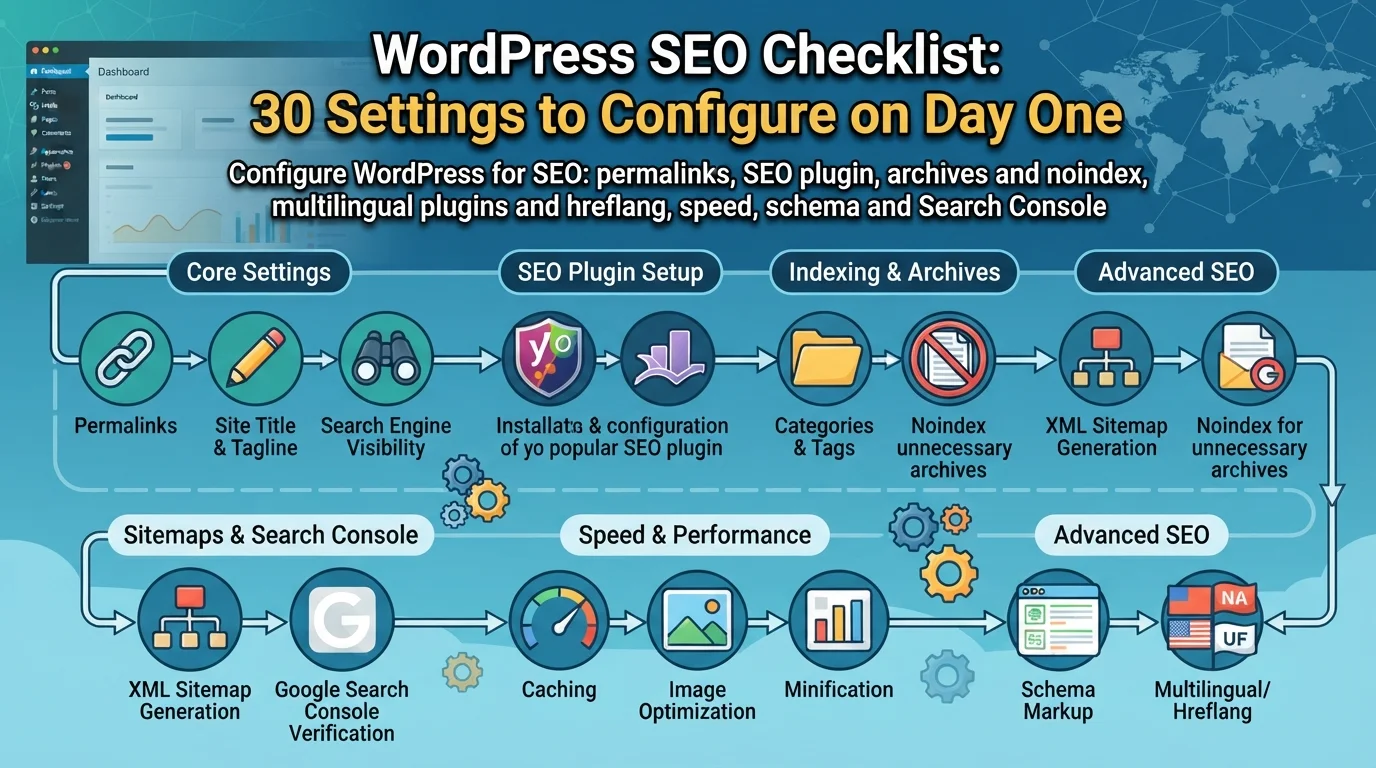
We build and maintain WordPress sites for clients every week, and our own website runs on WordPress in three languages. This WordPress SEO checklist gathers the 30 settings we check on every new site, grouped by area, with the reasoning behind each one. Work through it before launch, or use it to audit a site that is already live.
Before You Start: Staging and Backups
Configure settings on a staging copy where possible, and take a full backup before changing anything on a live site. Several settings below, such as permalinks and noindex rules, can affect how existing pages are indexed. If you are migrating from another platform or redesigning, follow a proper migration process as well; changing URLs without redirects can undo years of SEO work.
Part 1: Core WordPress Settings (1–8)
The first part of this WordPress SEO checklist covers settings built into WordPress itself. They take only a few minutes, yet they are often missed.
1. Turn off “Discourage search engines from indexing this site.” Under Settings → Reading, this box is often ticked during development. If it stays ticked after launch, WordPress asks search engines not to index the site. It is the single most damaging setting on this WordPress SEO checklist, and the easiest to fix.
2. Set permalinks to “Post name.” Under Settings → Permalinks, choose a structure that produces clean, readable URLs such as
/services/seo/
instead of
/?p=123
. Decide this before launch; changing it later requires redirects.
3. Choose www or non-www, and HTTPS. Set the WordPress Address and Site Address under Settings → General to the final version, for example
https://www.example.com
, and make sure every other version redirects there with a 301.
4. Install an SSL certificate and force HTTPS. Most hosts provide free certificates. Check that images, scripts and internal links do not still load over HTTP, which creates mixed-content warnings.
5. Write a clear site title and tagline. These often appear in themes, feeds and default title tags. Replace “Just another WordPress site” with your real brand and description.
6. Set the correct site language and time zone. Under Settings → General, the site language affects the default
lang
attribute and date formats. For an Arabic site, the correct language also helps right-to-left layout.
7. Decide on comments. If you do not use comments, disable them under Settings → Discussion to avoid spam and thin, low-quality pages. If you use them, moderate them.
8. Remove sample content. Delete the “Hello world!” post, the “Sample Page” and default comments. They are indexable, thin and unprofessional.
Part 2: SEO Plugin Configuration (9–16)
WordPress does not handle titles, meta descriptions, schema or indexing rules well on its own, so most sites use an SEO plugin. The two most common are Yoast SEO and Rank Math.
Yoast vs Rank Math: Which Should You Use?
Both are mature and capable of handling everything in this checklist. In our experience, the choice matters far less than configuring the chosen plugin properly. Yoast is long established and widely documented; Rank Math offers many features in its free version and a more granular interface. Pick one, and never run two SEO plugins at the same time: they produce duplicate tags and conflicting instructions.
9. Run the setup wizard carefully. Enter your organisation name, logo and social profiles. These feed the Organization schema that helps Google understand your brand.
10. Set title templates. Define default title formats for pages, posts, products and archives, typically “Page title | Brand name”. Then write custom titles for your key pages.
11. Write meta descriptions for important pages. Plugins can generate defaults, but your homepage, service pages and top landing pages deserve hand-written descriptions that encourage clicks.
12. Noindex low-value archives. This is one of the most important WordPress SEO settings. By default, WordPress creates archive pages for tags, dates and authors. On most business sites these pages are thin duplicates of existing content. Set tag archives, date archives and, on single-author sites, author archives to noindex. Keep category archives indexable only if they are genuinely useful pages with their own introduction.
13. Handle attachment pages. WordPress can create a separate page for every uploaded image. Recent versions of WordPress disable these pages by default on new installations, but older sites and some themes or plugins may still generate them. Make sure attachment URLs redirect to the file or parent post rather than appearing as thin pages.
14. Configure the XML sitemap. WordPress includes a basic sitemap, and SEO plugins provide more controllable versions. Use one sitemap, include only indexable content, and exclude noindexed archives and utility pages.
15. Check canonical tags. The plugin should output a self-referencing canonical on every indexable page. Make sure paginated pages and filtered URLs are handled consistently.
16. Enable breadcrumbs. Breadcrumbs improve navigation and internal linking and support BreadcrumbList schema. Many themes and plugins can add them automatically.
Part 3: Content and Structure (17–21)
17. Use one H1 per page. Check that your theme does not wrap the logo or site title in an H1 on every page, which competes with the real page heading.
18. Plan categories before publishing. A few clear categories aligned with your main topics are far better than dozens of overlapping ones. Avoid using tags as a second category system.
19. Build internal links deliberately. Link from blog posts to relevant service pages and between related articles. Our internal linking strategy explains how to plan this.
20. Write descriptive image file names and alt text before uploading, rather than “IMG_2045.jpg”.
21. Add structured data beyond the basics. Your SEO plugin covers Organization, WebPage and Article markup. Add LocalBusiness, Service, Product or FAQ markup where appropriate and only for content visible on the page. Our guide to schema markup for businesses covers this.
Part 4: WordPress Multilingual SEO (22–25)
For trilingual businesses, this is the most important section of any WordPress SEO checklist. Multilingual setups are where many Lebanese and Gulf WordPress sites go wrong. The most common plugins are WPML, Polylang and TranslatePress. WordPress multilingual SEO with WPML or any alternative depends on the same principles.
22. Use one language per URL. Each language should have its own URL, usually in a subfolder such as
/en/
,
/ar/
and
/fr/
. Avoid setups that change the language through cookies or browser detection without changing the URL, because search engines cannot reliably index each version.
23. Confirm hreflang tags are correct. Your multilingual plugin should add hreflang tags connecting each page to its translations, with return links from every version. Test a few pages manually. Missing or one-way hreflang is one of the most frequent issues we fix. Our guide to multilingual SEO in English, Arabic and French explains the full approach.
24. Translate SEO fields, not just content. Titles, meta descriptions, slugs, image alt text, menus and schema details should all exist in each language. Machine-translated or missing SEO fields are common on multilingual sites.
25. Keep Arabic slugs short, or use transliterated slugs. WordPress stores a page’s slug in a field limited to 200 characters, and Arabic characters take up several characters each once they are URL-encoded. Long Arabic slugs can therefore be cut off, sometimes in the middle of a word, producing broken-looking or duplicate URLs. Keep Arabic slugs to a few words, or use short Latin transliterations, and check them before publishing. Our Arabic SEO guide covers Arabic URLs in more detail.
Part 5: WordPress Speed SEO (26–28)
Speed is where WordPress SEO settings meet hosting decisions. It affects user experience and Core Web Vitals, and in Lebanon and parts of the Gulf many users browse on mobile connections that vary in quality.
26. Choose quality hosting close to your audience. Cheap shared hosting with slow server response undermines everything else. Our comparison of local vs international hosting in Lebanon explains the trade-offs.
27. Limit plugins and choose a lightweight theme. Every plugin adds code, and page builders can add a lot of it. Remove plugins you no longer use and avoid installing several plugins that do the same job.
28. Set up caching and image optimisation. Use a caching plugin or server-level caching, compress images, serve modern formats such as WebP, and lazy-load images below the fold. A CDN helps when visitors come from several countries. Measure the results with our guide to Core Web Vitals.
Part 6: Tracking, Security and Maintenance (29–30)
29. Connect Search Console and GA4. Verify your site in Google Search Console, submit your XML sitemap, and check the Pages report after launch for indexing issues. Install GA4 with conversion tracking for forms, calls and WhatsApp clicks. Our Google Search Console guide walks through the setup.
30. Keep WordPress secure and updated. Update core, themes and plugins regularly, use strong passwords and two-factor authentication, limit admin accounts and take automatic backups. Hacked WordPress sites are a common cause of spam pages and sudden ranking losses.
Common WordPress SEO Mistakes We See in Lebanon and the Gulf
When we audit WordPress sites for businesses in the region, the same problems appear again and again, usually because no one worked through a WordPress SEO checklist at launch:
- The site was launched with search engine visibility still blocked, sometimes for months, after a developer forgot to untick the box.
- The Arabic version exists but has no hreflang, so Google shows English pages to Arabic searchers, or treats translations as duplicates.
- Hundreds of tag pages are indexed, each listing one or two posts, diluting the site’s quality signals.
- Old page builder or slider plugins remain installed, loading heavy scripts on every page long after the feature was removed.
- Two SEO plugins are active, after a team switched from one to the other without removing the first.
- Arabic slugs are cut off or duplicated because they were generated automatically from long titles.
None of these issues is difficult to fix, but each one can hold back rankings for months. A short review against this WordPress SEO checklist every quarter catches them early.
How to Use This WordPress SEO Checklist?
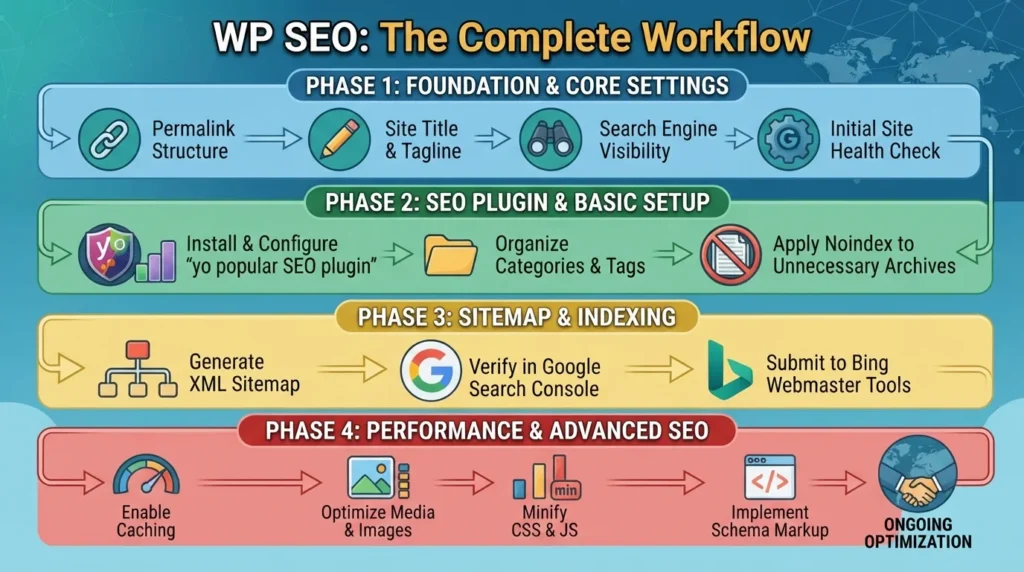
For a new site, go through all 30 points before launch, then review the Search Console Pages report two to four weeks later. For an existing site, start with the settings that cause the most damage: search engine visibility, permalinks, noindex rules for archives, attachment pages, multilingual hreflang and speed.
This WordPress SEO checklist covers platform settings. For a broader review of crawling, indexing, content and links on any platform, use our technical SEO audit checklist. And if you are still deciding whether WordPress is right for your project, our comparison of custom vs WordPress vs Shopify can help.
Frequently Asked Questions
A good WordPress SEO checklist includes, at minimum: search engine visibility enabled, “Post name” permalinks, HTTPS, one SEO plugin configured with titles and meta descriptions, noindex for thin archives, a clean XML sitemap, correct multilingual hreflang, fast hosting with caching and optimised images, and Search Console connected.
Both are capable and widely used. The configuration matters more than the choice. Pick the one your team finds easiest to manage, configure it carefully, and never run two SEO plugins at the same time.
On most business sites, tag and date archives should be noindexed because they duplicate existing content. Category archives can stay indexable if they are useful, well-organised pages with their own introductions.
WPML, Polylang and TranslatePress can all work well. What matters is that each language has its own URL, hreflang tags are correct in both directions, and all SEO fields are translated by native speakers.
WordPress limits the length of stored slugs, and Arabic characters become much longer once URL-encoded. Long Arabic slugs can be truncated. Keep them short or use short transliterated slugs.
Get Your WordPress Site Right From the Start
WordPress can be an excellent platform for SEO, but only when it is configured with care. The settings in this checklist take a few hours to review and can prevent months of lost visibility, wasted crawling and multilingual confusion.
If you want an experienced team to check your setup, the Creative 4 All SEO team can audit your WordPress site in English, Arabic and French, fix configuration issues and give you a prioritised action plan. Explore our SEO services in Lebanon and request a free SEO audit through the form or on WhatsApp.